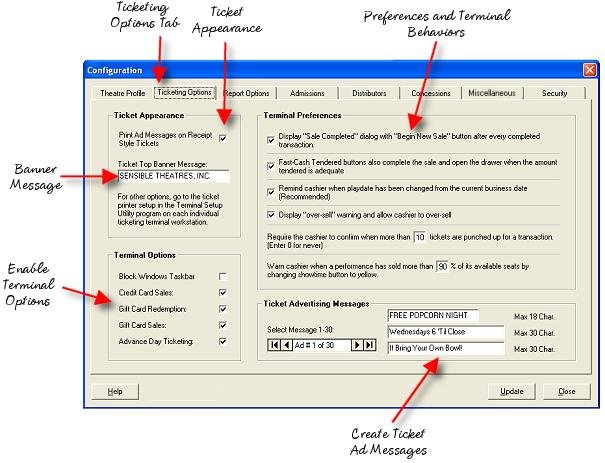
The Ticketing Options page allows you to set global ticketing options affecting all of your sales terminals. Other settings unique to the individual workstation are setup in the Terminal Setup Utility, for instance, Ticket Printer setup.
Frequently Asked Questions:
What Goes Here? (Fields you may not know what to enter in)
APPEARANCE OPTIONS:
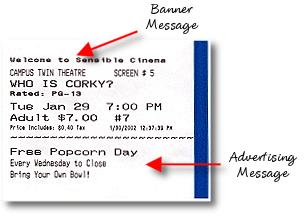
Banner Message - This message text is shown at the very top of your ticket on the patron half.
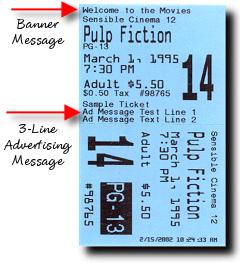
Advertising Message - This is a three-line message that can display anything you want, including information about upcoming features, concession specials, merchant tie-ins, etc. Use your imagination. Up to 30 messages can be stored here and when setting up a feature you can select one of the pre-defined messages. See above illustration.
Print Advertising Messages on Receipt Style Tickets (Checkbox) - This checkbox allows you to turn off ad messages on receipt tickets to save paper or to save printing time. On receipt tickets, more paper is consumed when printing the ad message and more printing time is required, though nominal.
TERMINAL OPTIONS
Block Windows Taskbar (Checkbox) - This checkbox allows you to make it impossible for a cashier to access other Windows programs and functions by blocking the taskbar, provided there is no keyboard attached to the workstation terminal.
Credit Card Sales (Checkbox) - This checkbox allows you to add or remove the credit card tender option from the terminal screens.

Gift Card Redemption (Checkbox) - This checkbox allows you to add or remove the gift card tender option from the terminal screens. While not currently enabled for gift card processing, gift certificates redeemed may be tendered as such by enabling the gift certificate button in the terminal.
Gift Card Sales (Checkbox) - This checkbox allows you to add or remove the gift card sales option from the terminal screens. This feature is currently not available and is expected to be added in 2003 once the card issuer has it's redemption program in place.

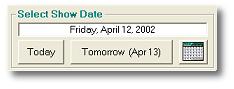
Advance Day Sales (Checkbox) - This checkbox allows you to add or remove the "Tomorrow" button and Calendar button that allow the advance sale of tickets.
TERMINAL PREFERENCES
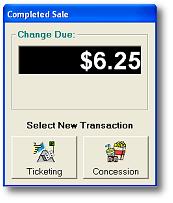
Display "Completed Sale" dialog box (Checkbox) - This checkbox when checked makes the terminal display a dialog showing the change amount and "Start New Sale" buttons following a completed sale.
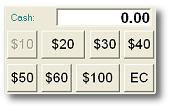
Fast Cash Buttons Also Open Drawer and Close The Sale (Checkbox) - This checkbox when checked allows the cashier to skip the additional step of pressing the "Sale" button after entering a predefined tender amount or exact change buttons. If the sale is $19.50 and the cashier presses the $20 button, the sale completes, the pole display displays the total, the change window appears and the drawer opens.
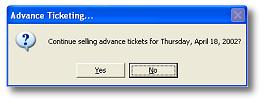
Remind Cashier when Playdate Has Changed (Checkbox) - This checkbox when checked sends the cashier a question dialog after completing an advance ticket sale that asks does he want to sell another advance ticket or return to the current date. This prevents the accidental sale of tickets for the wrong playdate.
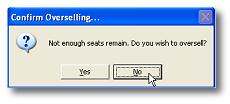
Display "Over Sell" warning dialog box and all overselling (Checkbox) - This checkbox when checked allows the cashier to continue selling tickets after the sellout has occurred but warns him each time tickets are selected for a sold out performance. This gives the manager some discretion about seats available once the sellout figure has been reached and permits sales of tickets should there be seats available that are not accounted for in the ticketing system.
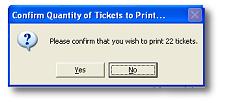
Require confirmation when more than Xx number of tickets are punched - If more than this number of tickets are punched up in a single sale, a message is sent to the cashier asking for confirmation. This prevents the accidental printing of an incorrect number of tickets, for instance if the cashier pressed 22 instead of 2 tickets.
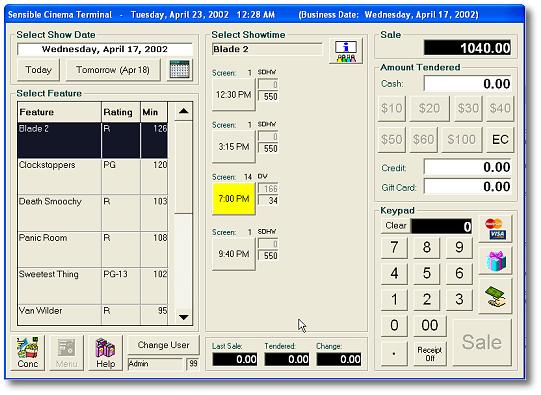
Warn cashier when more than XX% of tickets for a performance have been sold - Once XX% of the tickets have been sold, the showtime button at each terminal changes from the default button color to a warning yellow color alerting the cashier that a performance is nearly sold out. Once the showtime has sold out, the button color changes to red. Whether overselling is permitted or not depends on whether the above oversell option has been selected.
Sold Out Showtime
